
Automatically sync job photos to Google Drive.
WorkPhotos helps trade, construction, maintenance and field service teams capture photos by job. With the Google Drive integration enabled, job photos uploaded into WorkPhotos can be automatically copied into your connected Google Drive, keeping your site records backed up, organised and easier for the office to find.
Why connect WorkPhotos to Google Drive?
Job photos are useful only when they can be found later. WorkPhotos keeps photos attached to the correct job, while Google Drive gives your business a familiar place to store and access files. Together, they help reduce lost images, messy phone galleries, manual uploads and duplicated folders.
Once the integration is active, photos uploaded to WorkPhotos can sync to the connected Google Drive account without your team manually downloading, naming or moving files.
Photos stay connected to the job they belong to, so office staff can review evidence, progress images and completion photos without chasing people on WhatsApp, email or camera rolls.
Field staff continue using the WorkPhotos mobile app to create jobs and upload photos. The Google Drive sync works behind the scenes once the workspace integration is enabled.
How the Google Drive setup works
Takes less than 30 seconds to configure.
The Google Drive integration is configured from the WorkPhotos web app. These screenshots show the setup flow: open Integrations, connect Google Drive, choose the Google account, approve access, then return to WorkPhotos with Google Drive enabled.
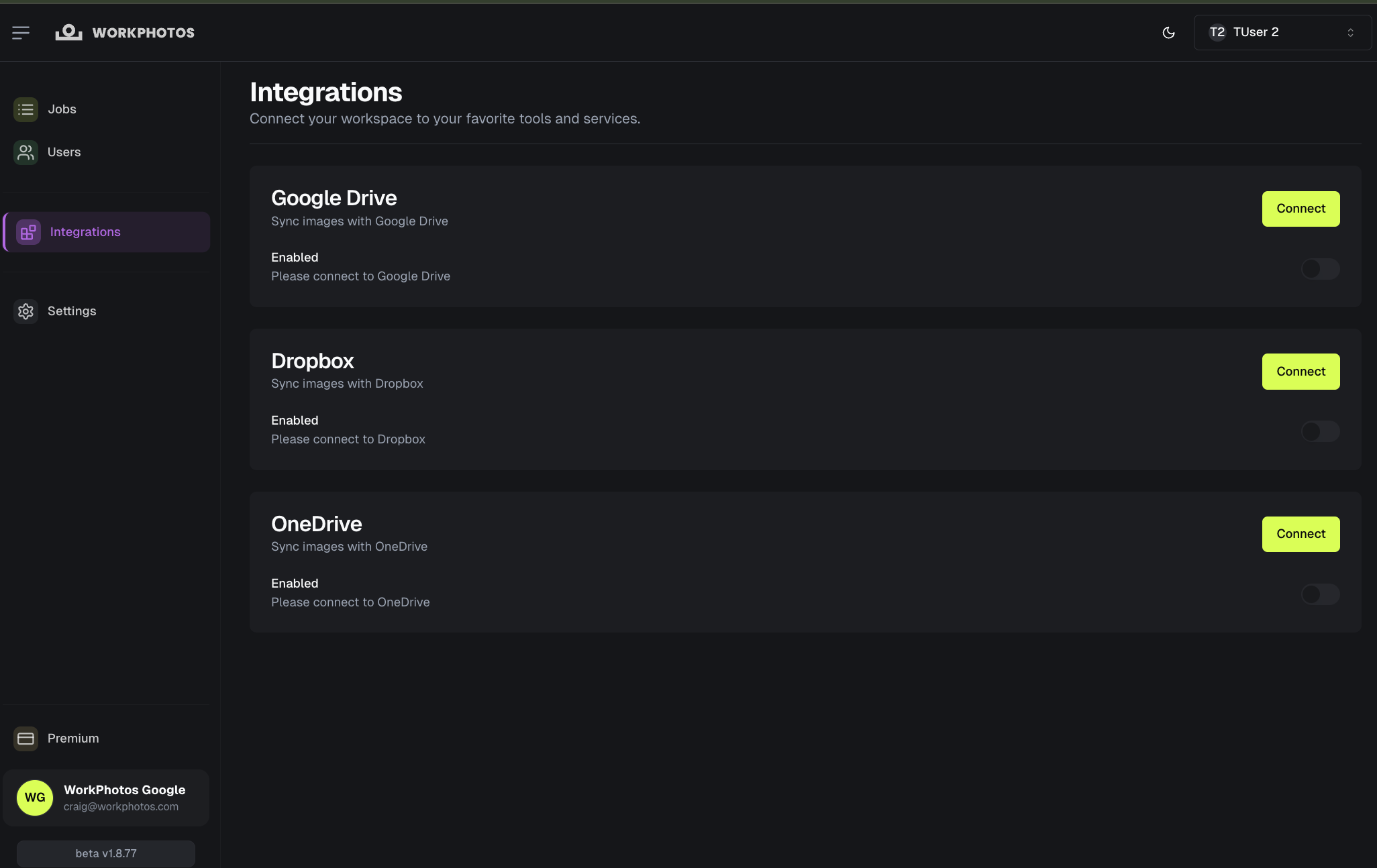
Open Integrations
In the WorkPhotos web app, open the Integrations page and choose Google Drive.
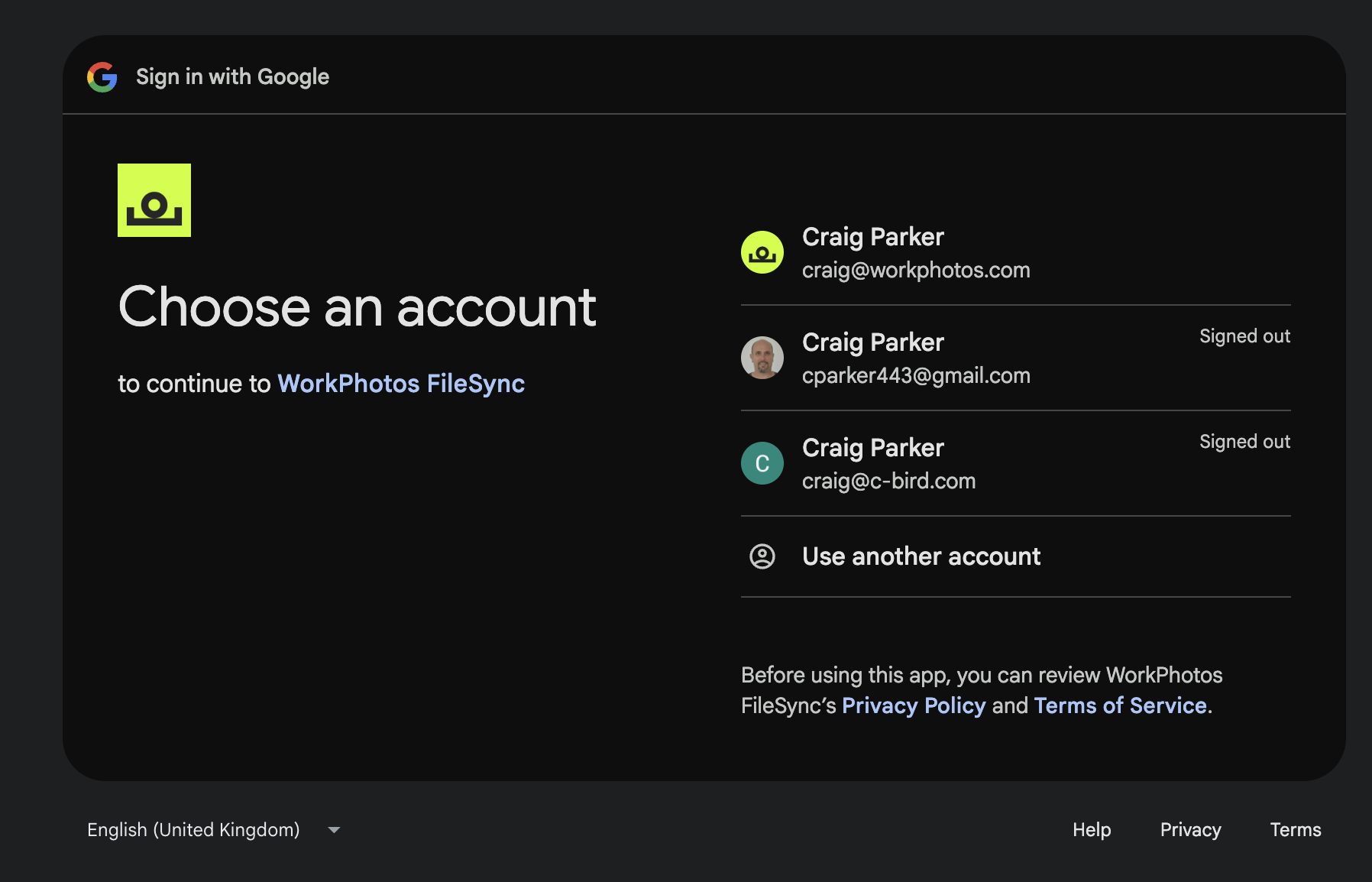
Choose Google account
Select the Google account that should receive the synced WorkPhotos job photos.
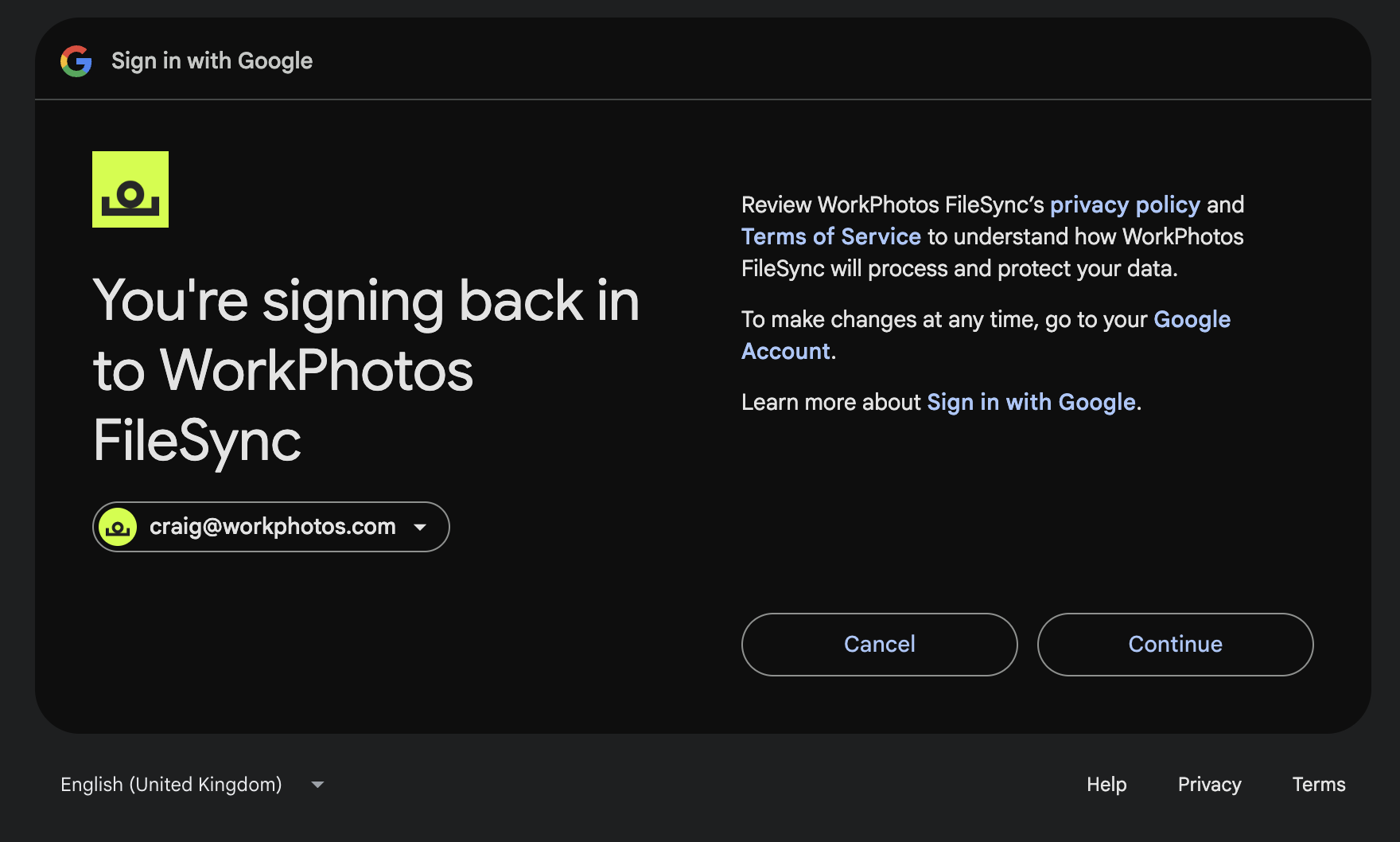
Confirm sign-in
Google confirms the account before continuing with WorkPhotos FileSync.
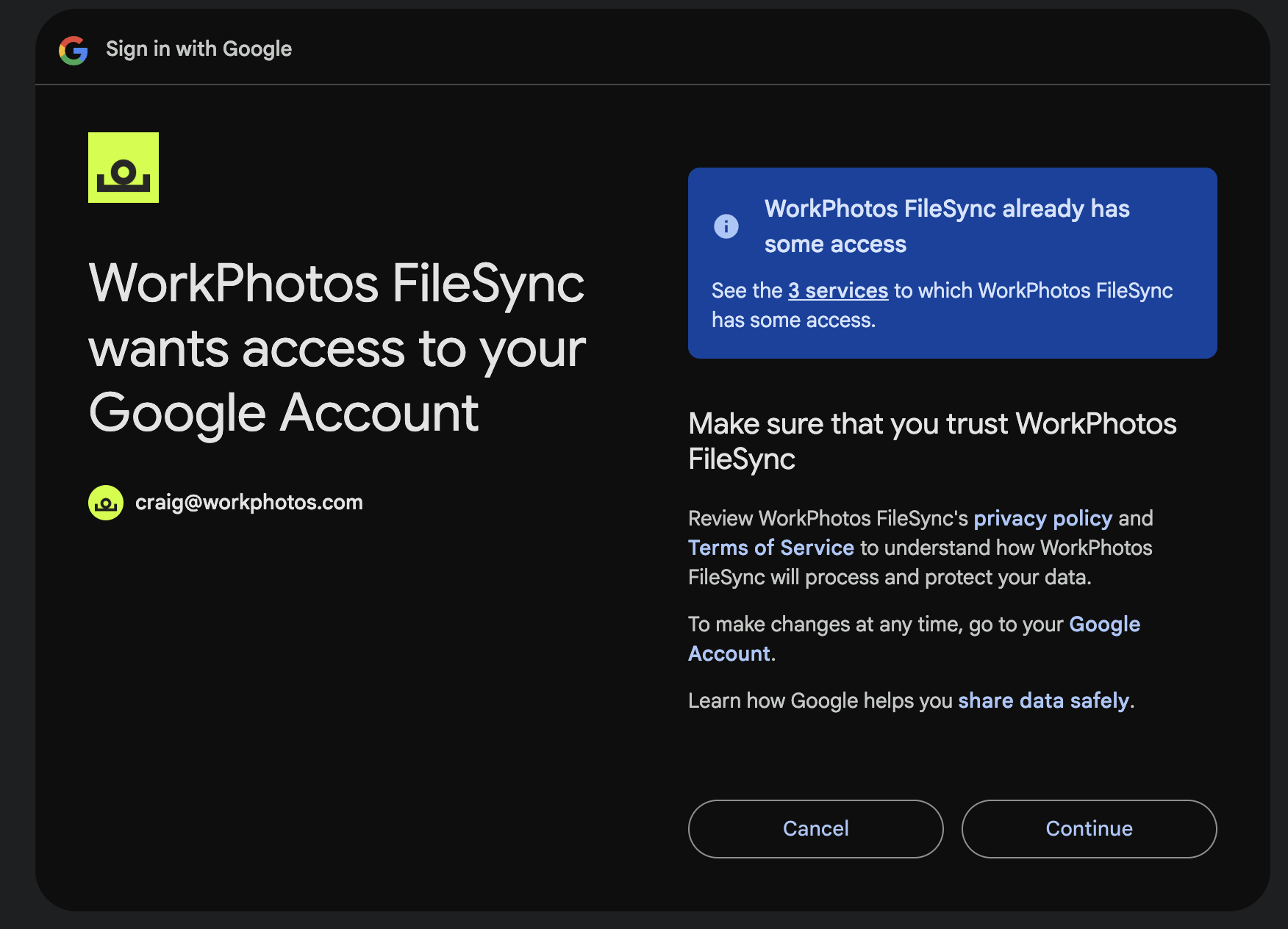
Approve access
Allow WorkPhotos FileSync to connect so job photos can be sent to Drive.
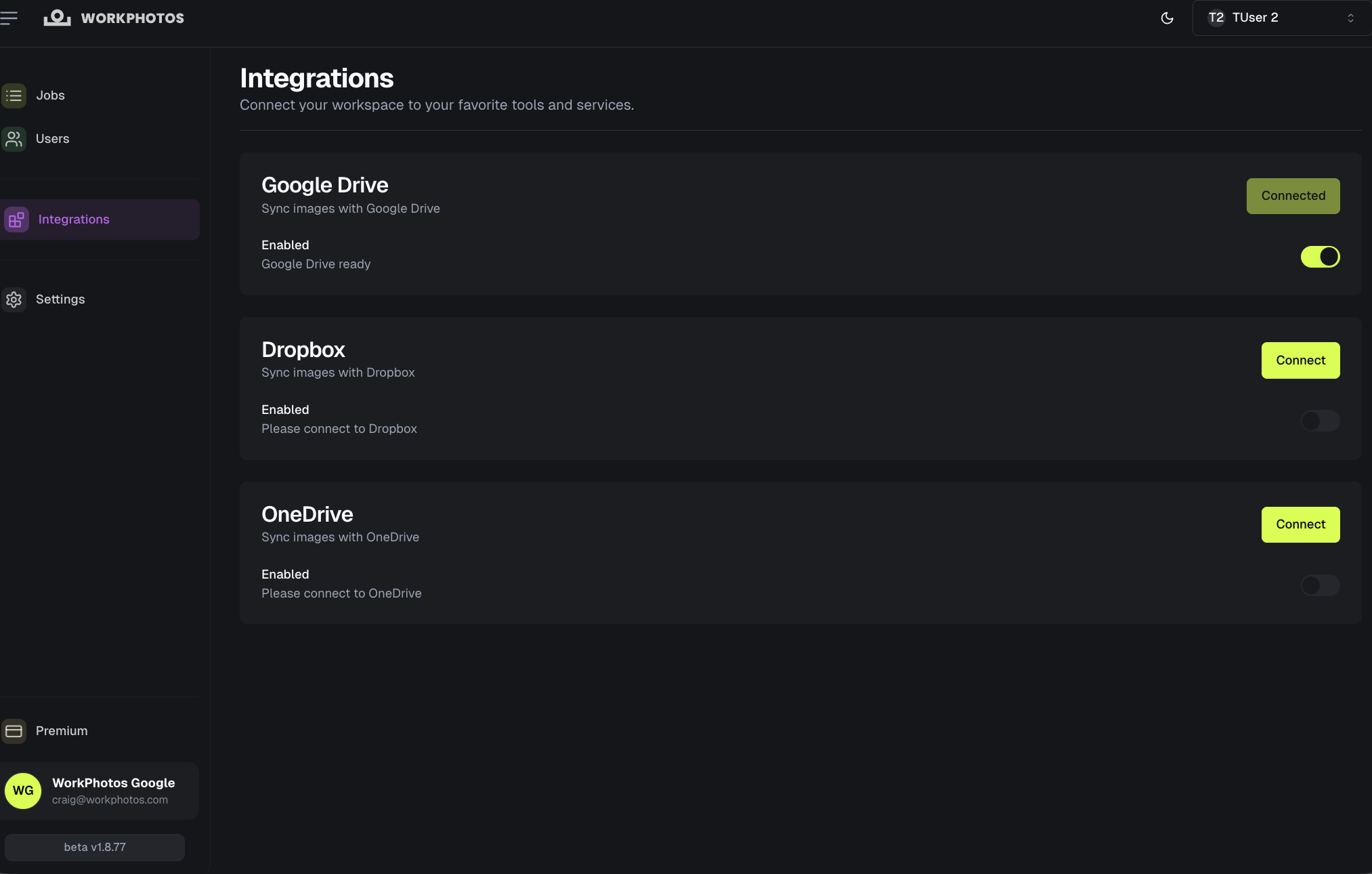
Google Drive is active
Back in WorkPhotos, Google Drive shows as connected and can be enabled for the workspace.
Google Drive integration settings are managed in the WorkPhotos web app, not inside the mobile app.
Create the job. Take the photos. Let the sync run.
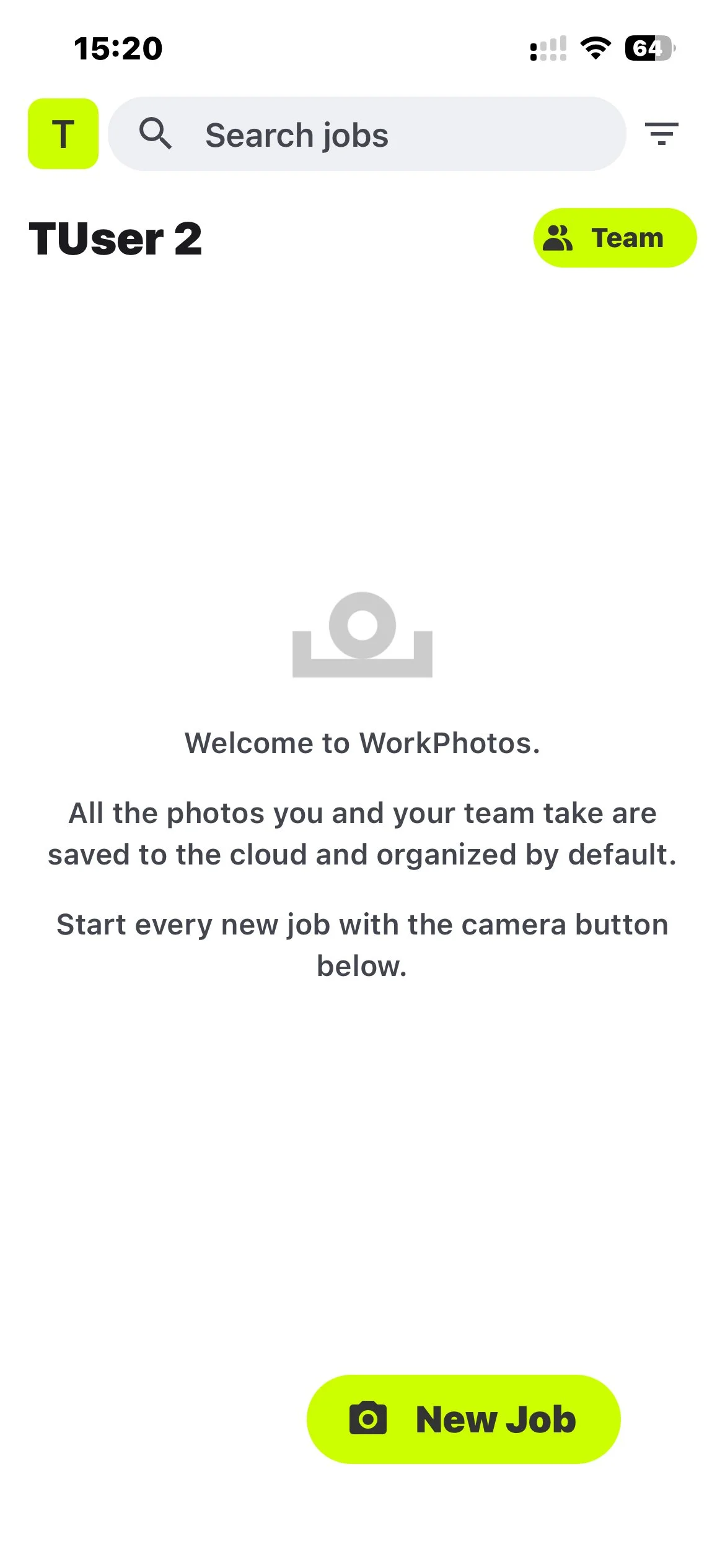
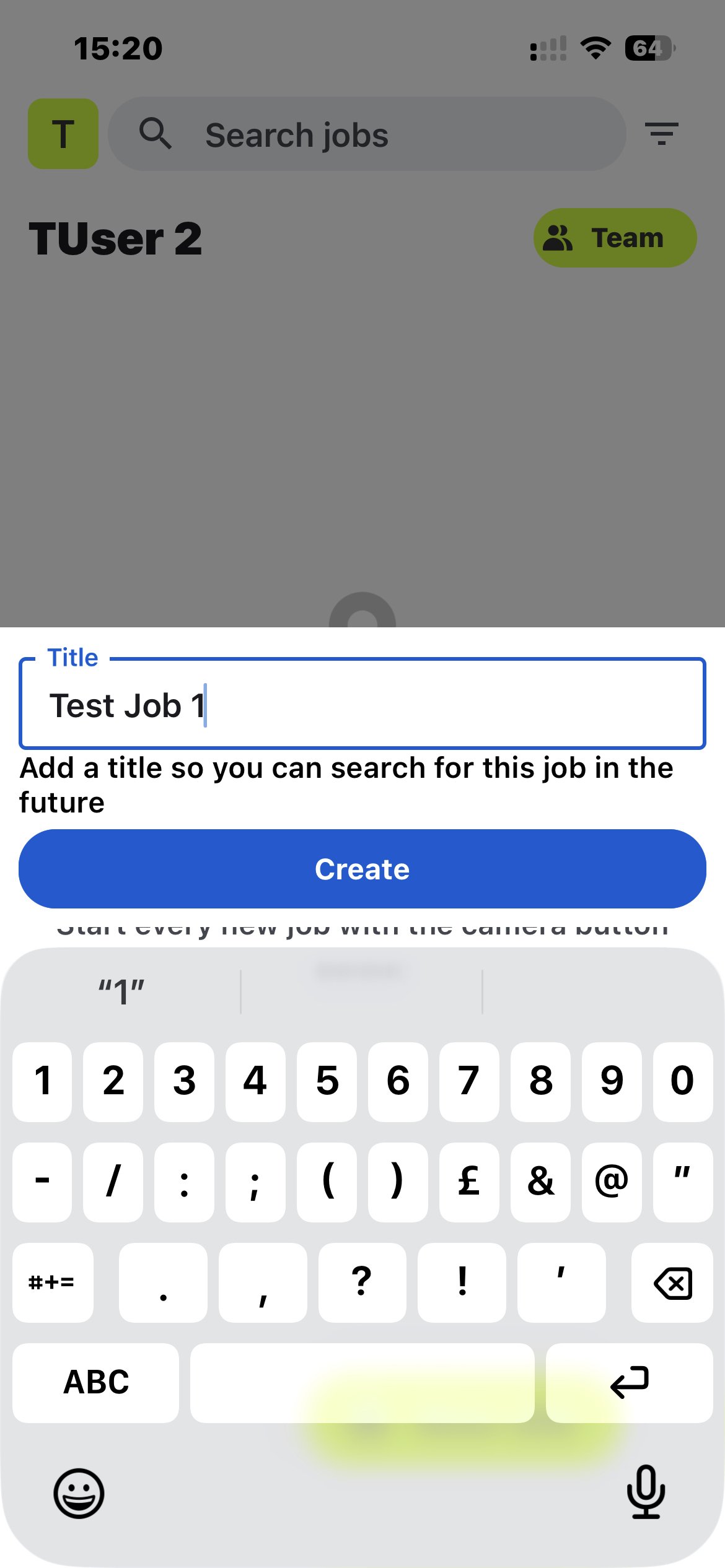
Your field team does not need a new Google Drive routine. They continue using the WorkPhotos app: create a job, capture photos, and upload them against the correct job. Once the integration is active, the job photos can then appear in the connected Google Drive folder structure.
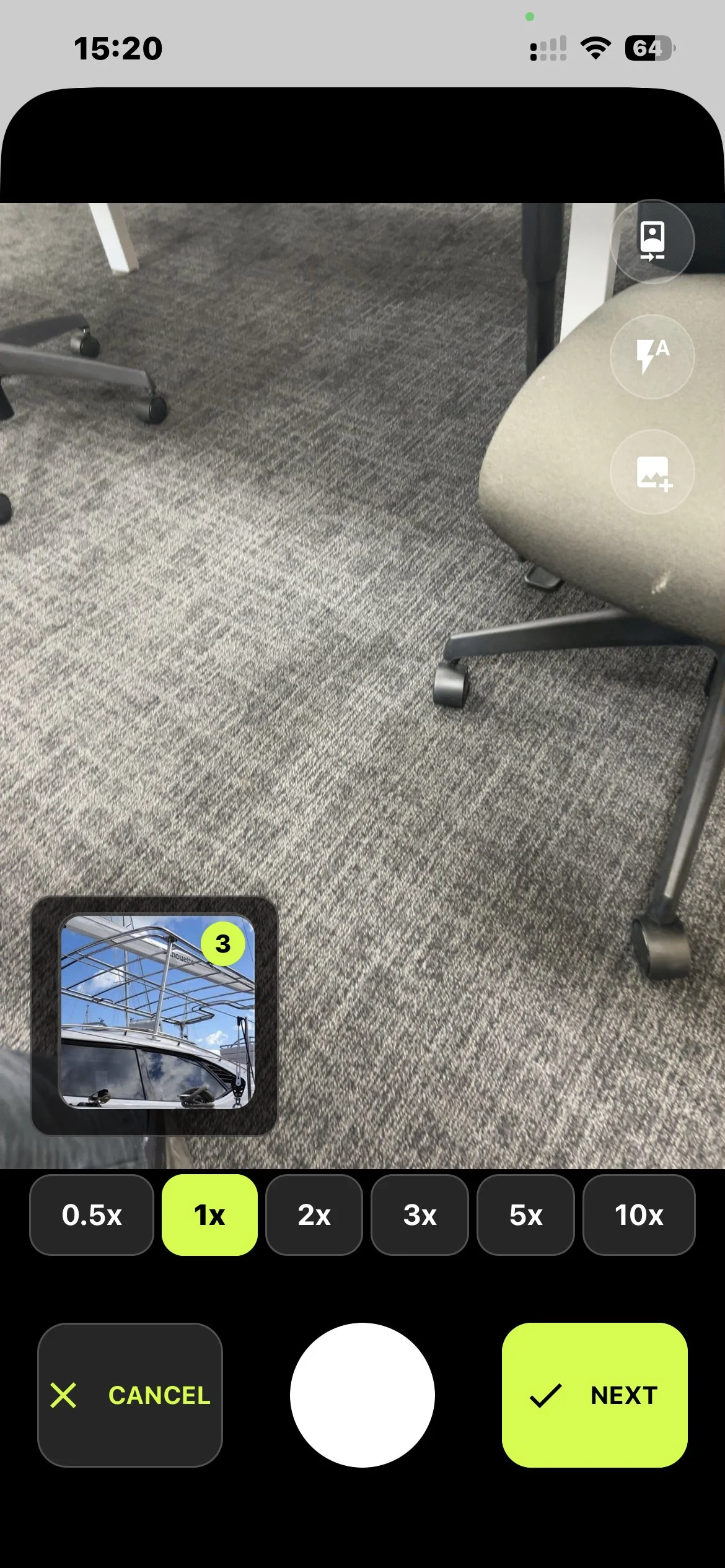
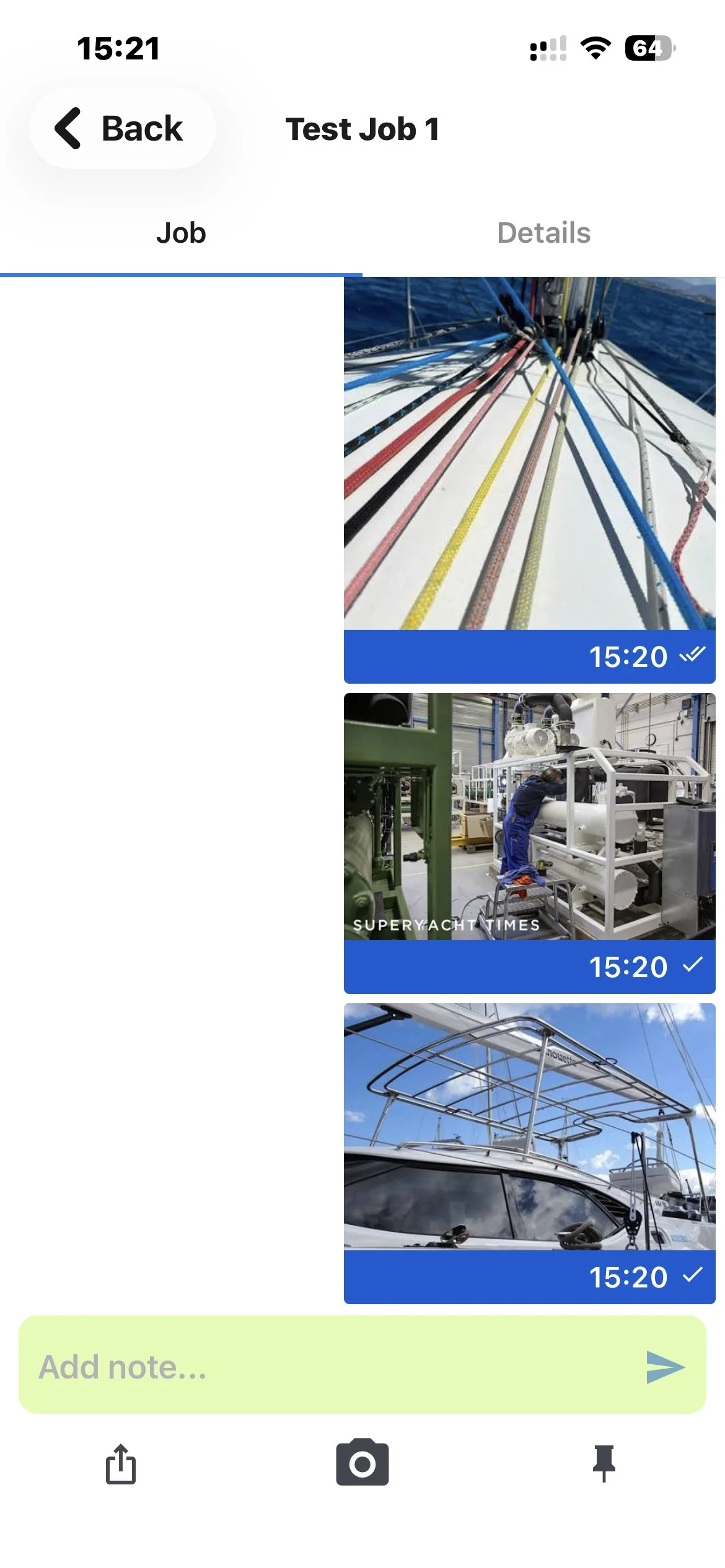
See the job photos in WorkPhotos and Google Drive
These screenshots show the result after upload: the photos are visible in the WorkPhotos web app, and the connected Google Drive contains a WorkPhotos folder, a job folder and the synced image files.
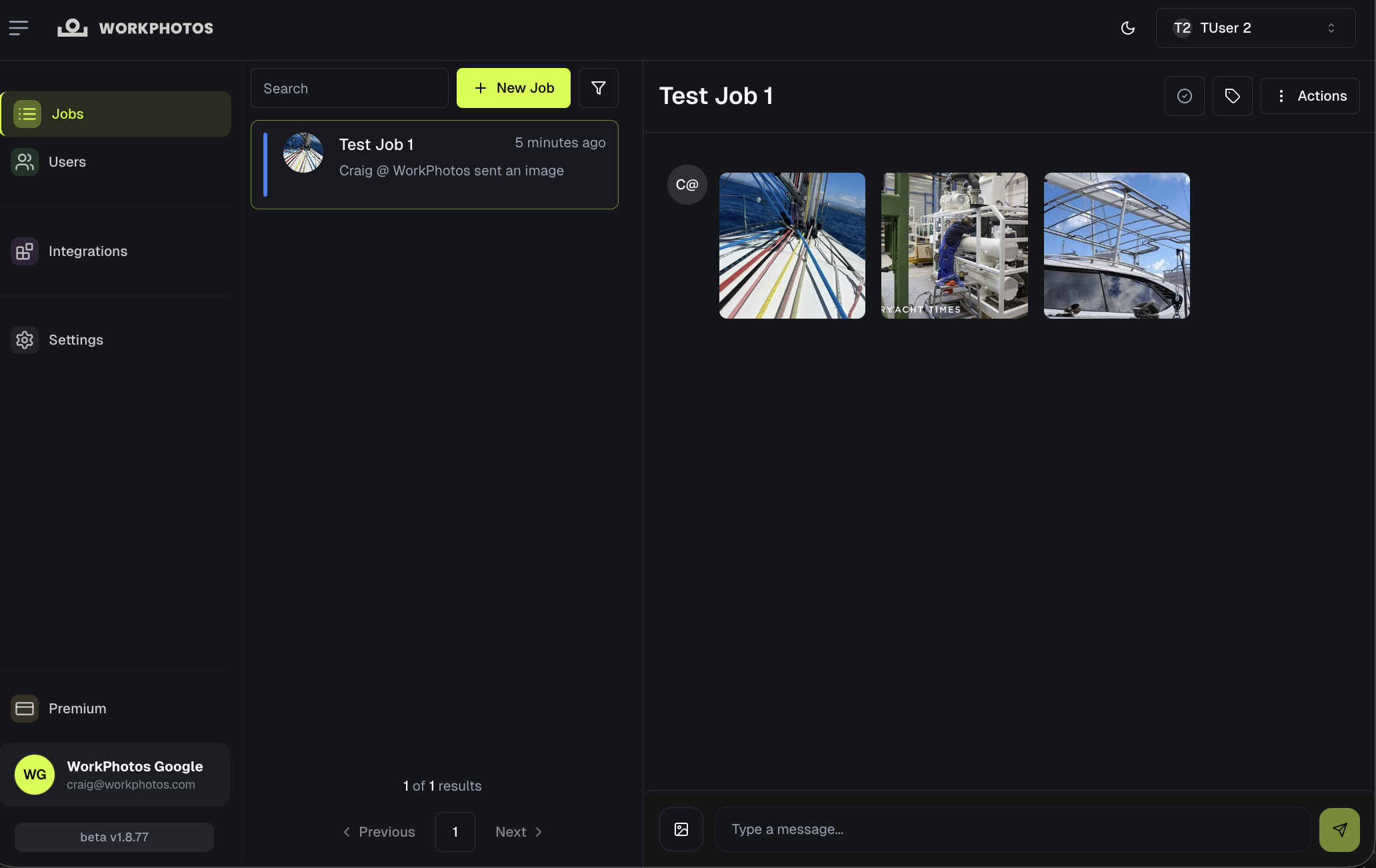
Review photos in the web app
Office users can open the WorkPhotos web app and view the job photos without waiting for someone to send them manually.
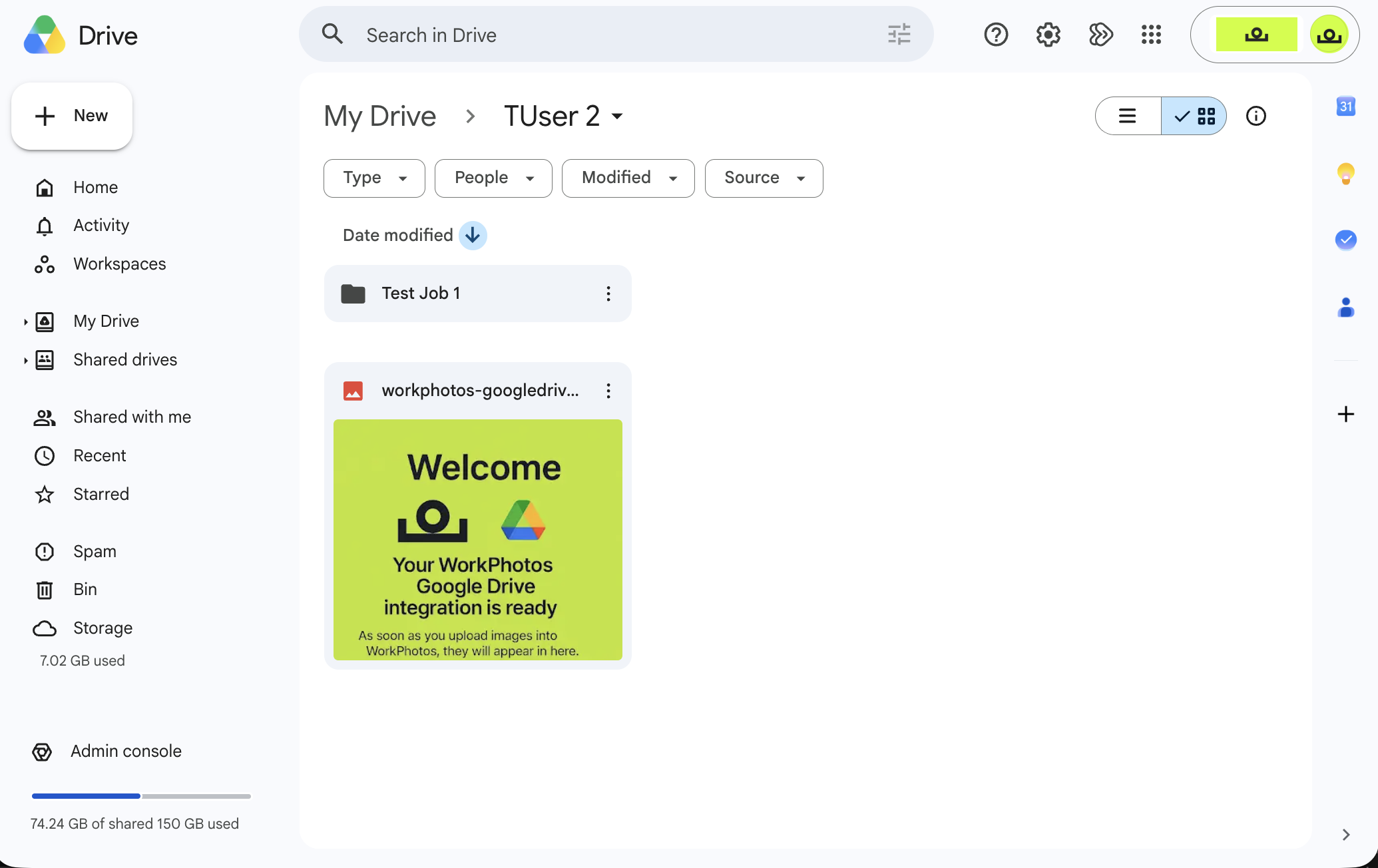
Find the WorkPhotos folder
Google Drive shows the WorkPhotos integration folder and the job folder created for the uploaded WorkPhotos job.
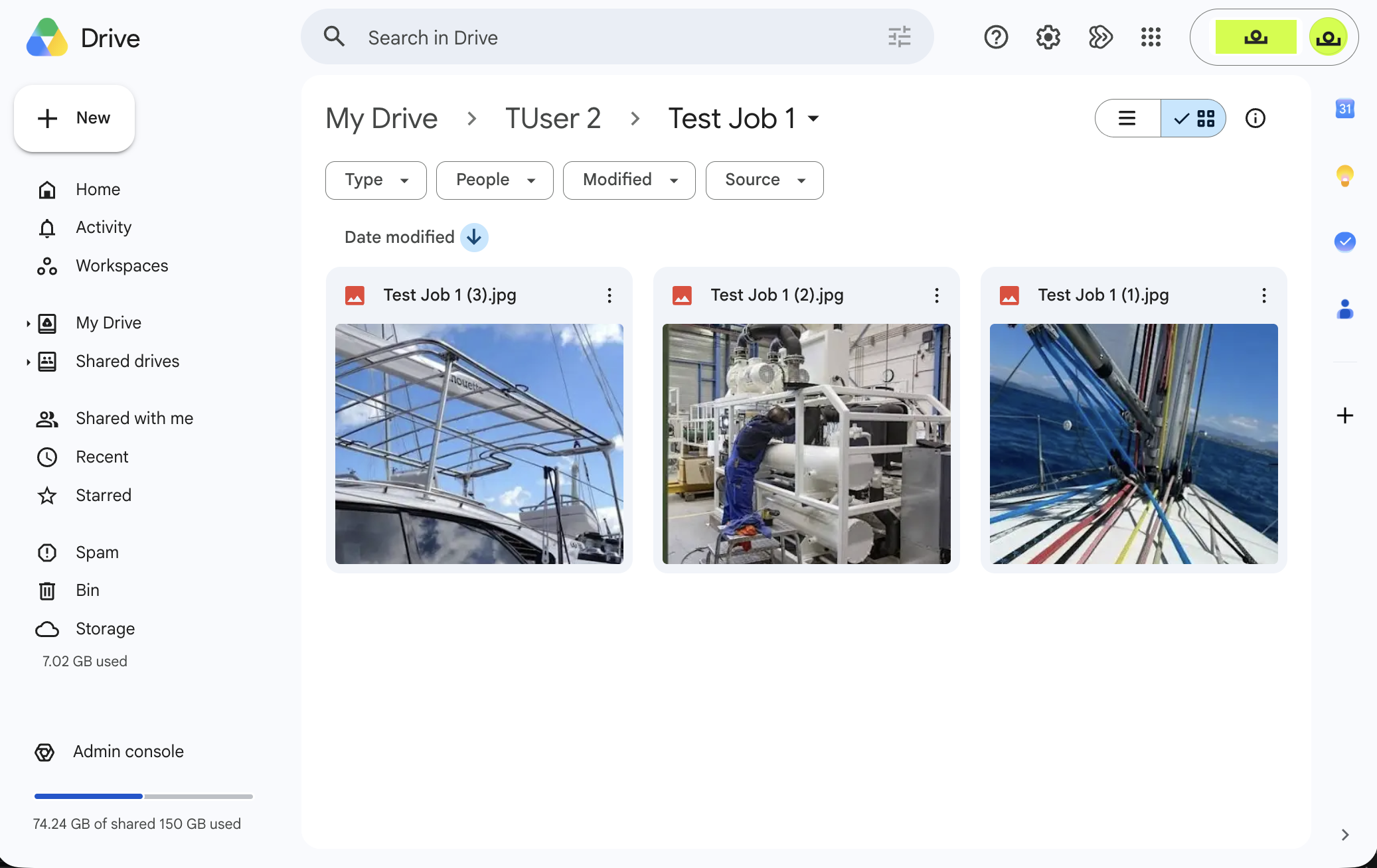
Open the synced files
The uploaded job photos appear inside Google Drive, making them easier to store, search, share and manage using your existing Google account.
Built for the real problem: photo chaos.
Field photos often end up scattered across phones, message threads, email attachments and random folders. WorkPhotos gives the team a simple job-based capture process, then the Google Drive integration helps your business keep a second organised copy in a storage tool you already use.
What syncs to Google Drive?
The WorkPhotos Google Drive integration is designed for job photo syncing. It helps move uploaded job photos into connected cloud storage, while the main job workflow, team access and photo capture remain inside WorkPhotos.
Photos uploaded against jobs in WorkPhotos can be copied to the connected Google Drive account when the integration is active.
The integration is connected for the workspace, so teams can keep each workspace tied to the correct cloud storage location.
Google Drive stores the synced photo files. WorkPhotos remains the place for job-based capture, team workflow and reviewing photos by job.
Common questions
Do I need to upload photos to Google Drive manually?
No. The point of the integration is to avoid manual download and upload steps. After setup, your team can keep uploading photos into WorkPhotos and the connected Google Drive can receive the synced job photo files.
Is the Google Drive integration set up in the mobile app?
No. Setup is handled in the WorkPhotos web app. Field users can keep using the mobile app to create jobs and upload photos after the workspace integration is active.
Does the integration sync every type of WorkPhotos data?
No. The Google Drive integration is for job photos. It is not intended to sync comments, user details, workspace settings or reports.
Can different workspaces use different Google Drive accounts?
Integrations are configured per workspace. If your business uses multiple workspaces, each workspace can be connected separately so photo storage stays organised.
Is Google Drive included on the free plan?
Cloud storage integrations such as Google Drive are part of WorkPhotos paid plans. See the pricing page for current plan details.
Want your WorkPhotos job photos backed up to Google Drive?
Connect Google Drive from the WorkPhotos web app, then start your next job as normal. Your uploaded job photos can be organised in WorkPhotos and synced into Drive for easier storage and access.
Need help checking your setup? Email hello@workphotos.com.