
WorkPhotos FAQs
-
WorkPhotos has a Free plan for teams with up to 3 users. Paid subscriptions add HD image capture, web app functionality, and integrations. Paid plans are charged per user for every user on the paid account.
Our paid subscription adds HD image capture, web app functionality, and integrations. Paid subscriptions are per-user-based. Team members can be added to all workspaces the paying subscriber creates. Subscribed users can select HD photo capture from their personal settings in the mobile app if maximum image resolution is required. This is particularly important for quality control proposes, for example:
If HD resolution is not essential, you can prioritize the speed of service with the standard image resolution.
New features and upgrades will be added as we improve WorkPhotos and will be included as part of your existing subscription.
-
You can download the WorkPhotos app directly from the Apple App Store for iOS devices or the Google Play Store for Android devices. Simply search for "WorkPhotos," and follow the instructions to install the app on your device. To access the web app you are required to first download and sign in to the mobile app. This helps ensure security.
-
WorkPhotos is ideal for teams who just want to share images of the work they do without having to buy complex and costly job management software. Team members love it because nothing is stored to their personal camera roll and they don’t need to use personal apps or email to send images to each other. Businesses love it because it complements how they already work.
-
WorkPhotos enables your team to instantly share organised photos of every job before problems arise. It’s like a WhatsApp group chat except everything is recorded job by job. Your business gets all the photos it needs and your team has instant access for reference and proof. Our app is intentionally simple and only includes features that aid photo collaboration so you can complement your existing workflow with visual evidence, solve problems fast and save time.
-
Yes, WorkPhotos takes security seriously. All photos are stored and backed up securely to ensure that your content is safe and accessible only to authorized users.
-
Yes, WorkPhotos supports access from multiple devices. You can log into your account on different devices, and your photos will be synced automatically, allowing you to view and share them from anywhere.
-
Yes, WorkPhotos offers some customisation and integration options, such as Dropbox. This allows you to instantly backup all images to a separate system. If you have specific needs, reach out and we can advise what is best for you.
-
Yes — you can share photos by including them in a job report (PDF) or by downloading them from the app and sending them via WhatsApp, email, or other platforms.
🔹 You can’t currently share individual photos directly from WorkPhotos via a link.
-
Yes — you can add annotations while uploading a photo. This includes drawing directly on the image and adding text or arrows to highlight key details. It’s great for pointing out defects, areas needing attention, or explaining what the photo shows.
🔹 YAnnotations are saved with the photo and visible to everyone in your workspace. Once uploaded, photos can’t be re-annotated — but you can upload a new version if needed.
-
Photos are stored securely in your account with no time limits — even on the free plan. As long as your workspace is active, your photo history remains accessible.
🔹 Free plans include standard-resolution photo storage for up to 3 users. Paid plans unlock high-resolution storage and additional admin features.
-
See instructions below.
The password reset process depends on which login method your account uses. You should log in using the same method you used when your account was created.
Reset an email and password login
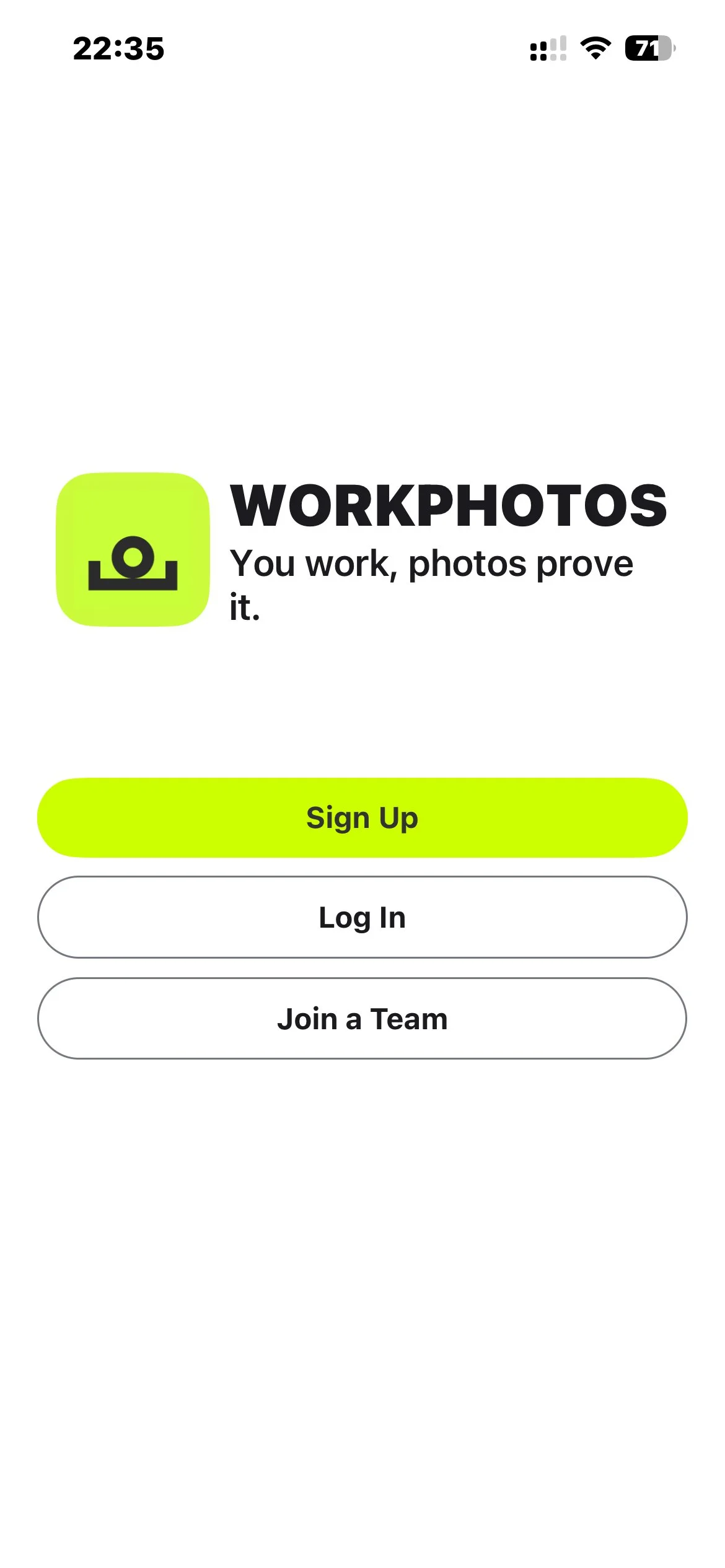
1. Open the WorkPhotos app
On the first screen, tap Log In.
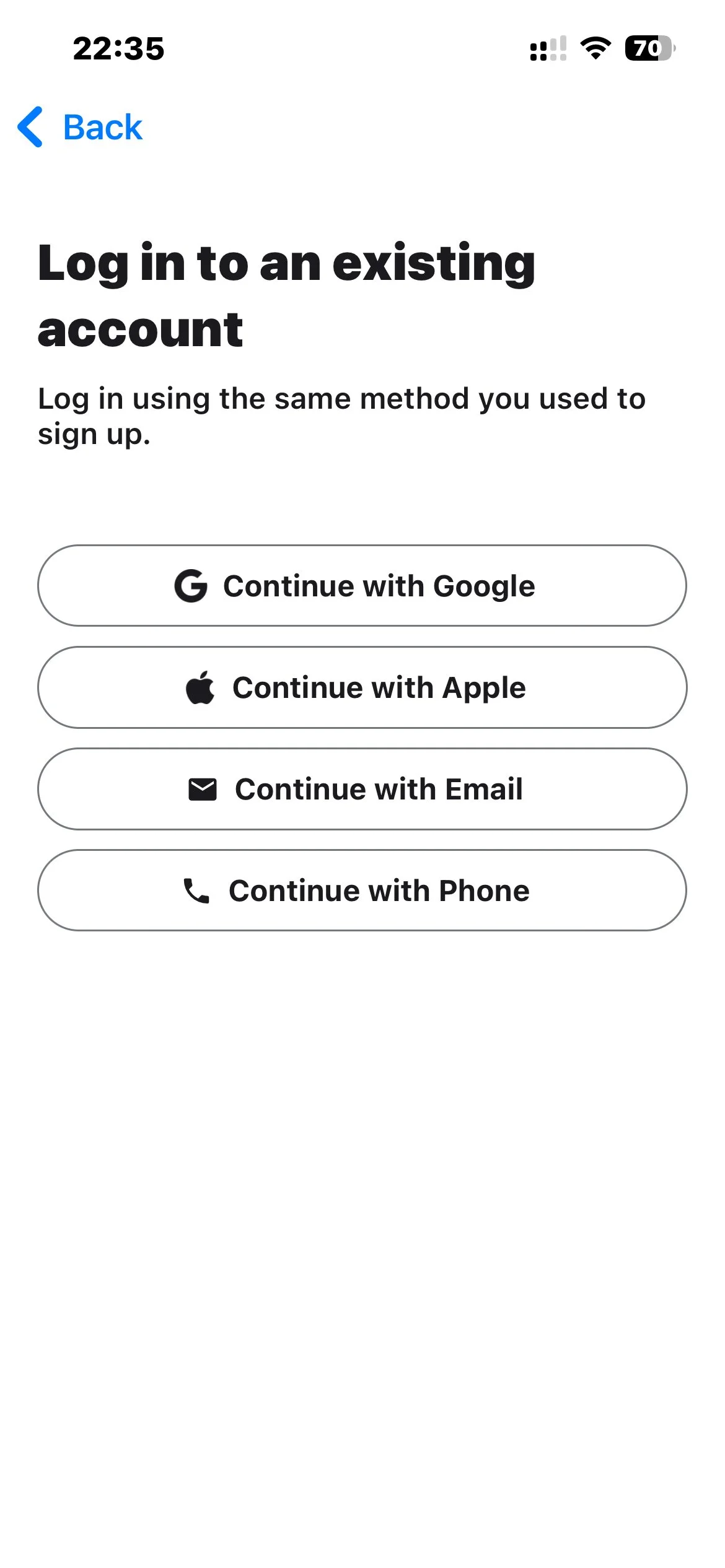
2. Choose email login
Tap Continue with Email.
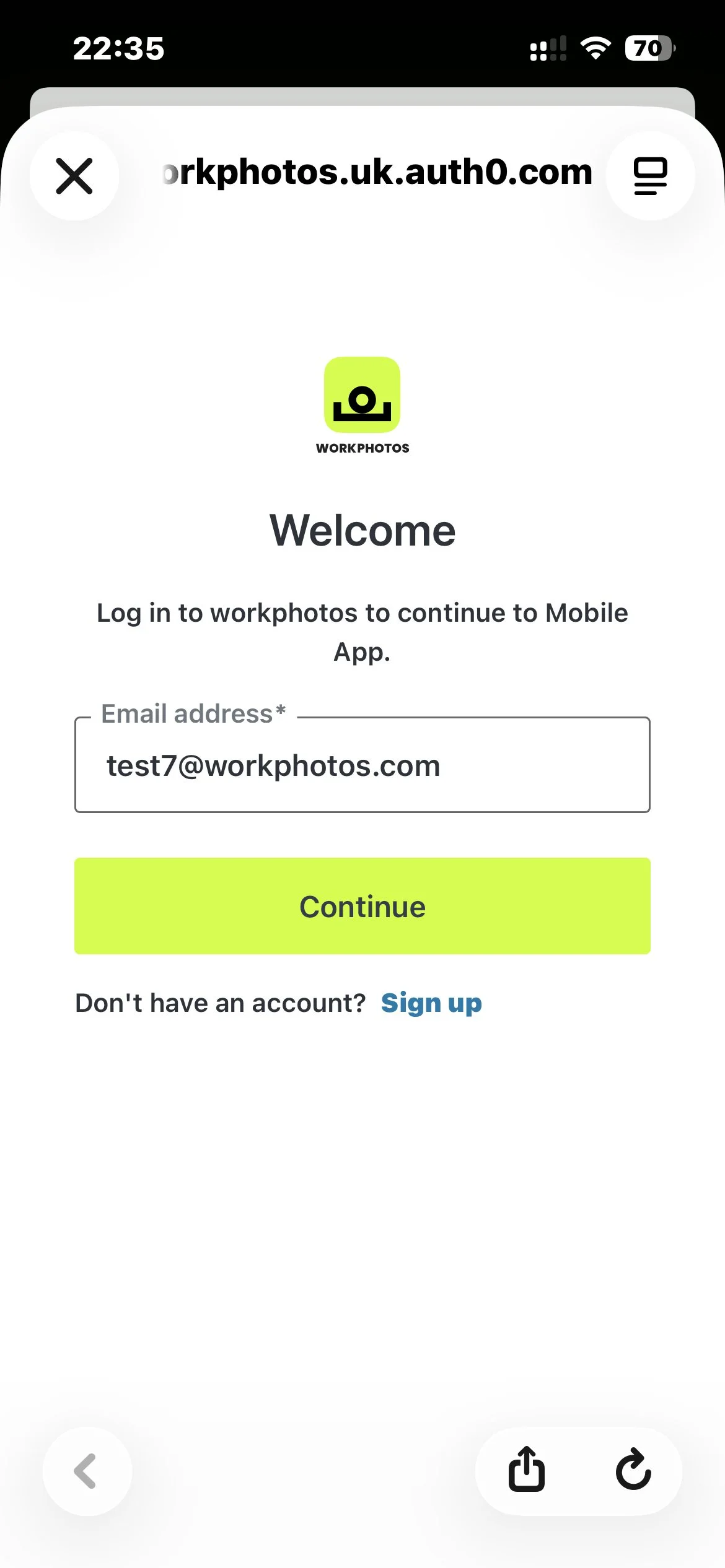
3. Enter your email address
Enter the email address linked to your WorkPhotos account, then tap Continue.
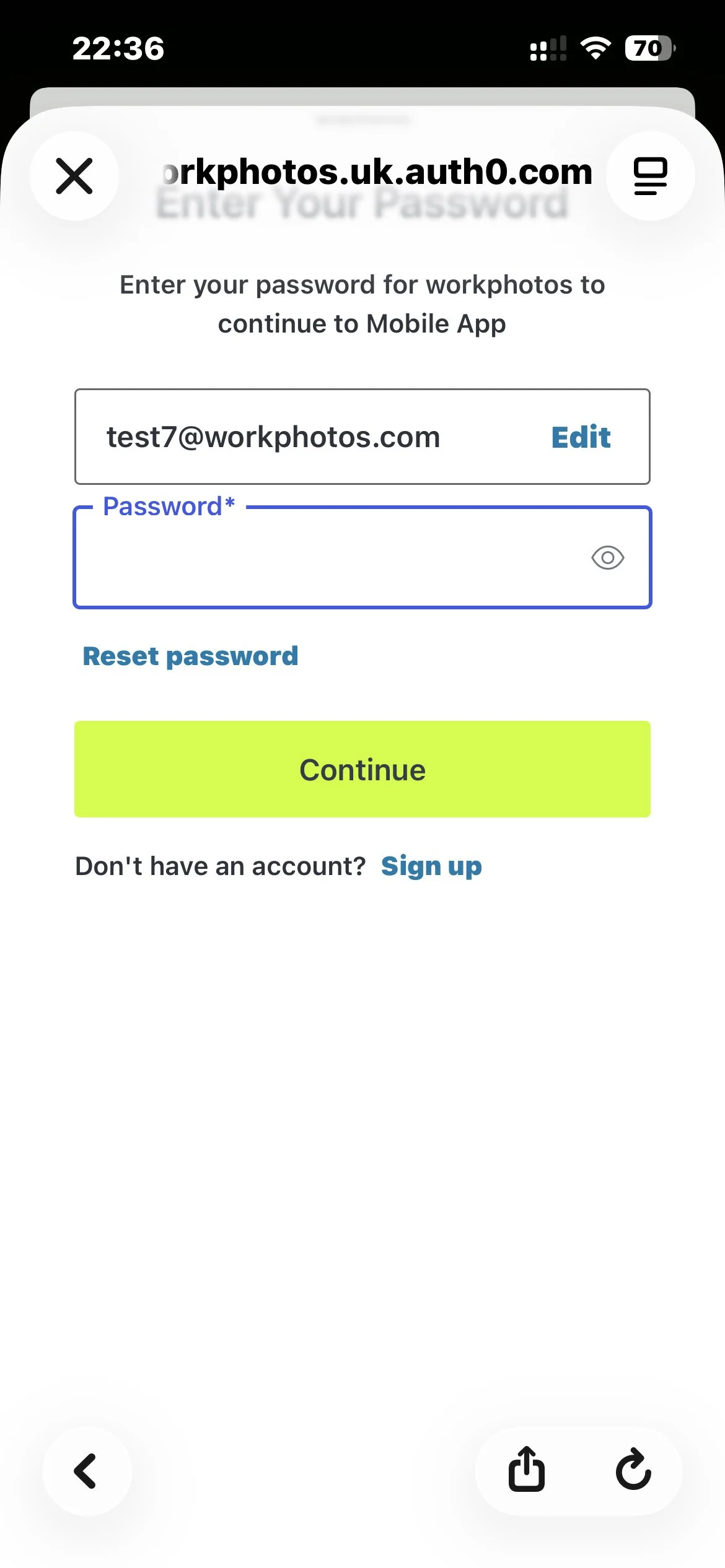
4. Tap Reset password
On the password screen, tap Reset password.
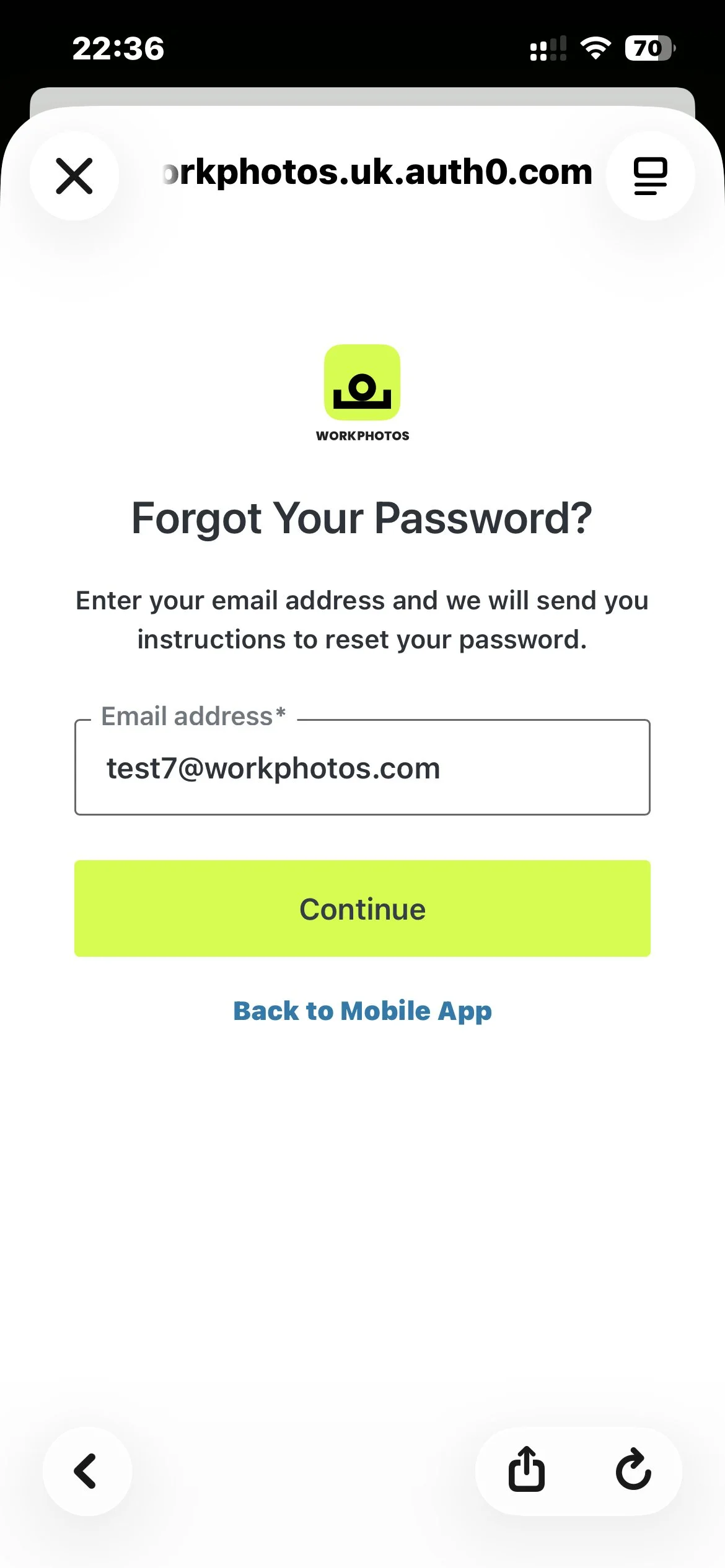
5. Confirm your email address
Make sure the correct email address is entered, then tap Continue.
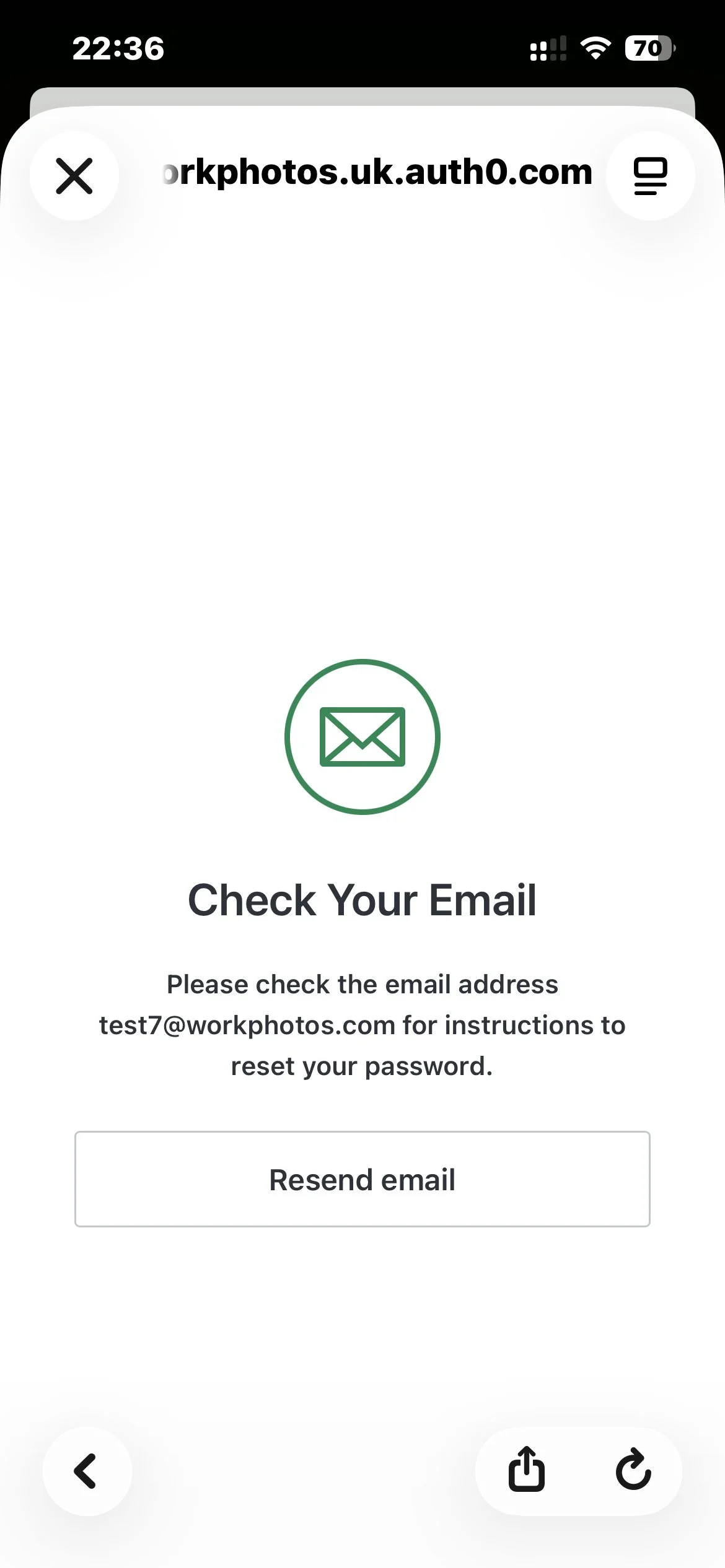
6. Check your email
WorkPhotos will send a password reset email to the address you entered. Open the email and follow the reset link.
If you do not receive the reset email
- Check your spam or junk folder.
- Make sure the email address is correct.
- Tap Resend email on the confirmation screen.
- Make sure you are using the correct login method for your account.